Class 2 - Strings & Images
Date: September 10, 2026
Skills: None
Notes (review before class)
Strings
A string is text: characters between double quotes (single quotes, as in
'CS2000', work too). Three double quotes on each side make a string that can
cross lines:
"Go Huskies!"
"Ell, Carl S."
"""Hello
There!"""
- Strings can contain spaces, punctuation, and digits. For flags, strings name
colors:
"red","blue". - Strings are case-sensitive:
"Red"and"red"are different strings.
Strings have operations too:
"Go" + " Huskies!"
len("Go Huskies!")
"ha" * 3
+puts the second string after the first:"Go Huskies!".len(s)is the number of characters ins:11.s * n(na non-negativeint) issrepeatedntimes:"hahaha".
Images
Python doesn't have images built in, but PLL adds them:
circle(30, "solid", "red")
circle(30, "outline", "blue")
rectangle(20, 10, "solid", "purple")
- Each names a shape, then gives its size in screen pixels (a circle's radius; a
rectangle's width, then height; a
triangle's side length), then"solid"or"outline", then a color.
Combining Images
For any new kind of data, ask what operations work on it. Images can be rotated, scaled, flipped, and combined:
rotate(45, rectangle(20, 30, "solid", "red"))

overlay(circle(25, "solid", "yellow"),
        rectangle(50, 50, "solid", "blue"))

above(circle(25, "solid", "red"),
      rectangle(30, 50, "solid", "blue"))
rotate(45, i)is the imageiturned 45 degrees (counter-clockwise).overlay(i1, i2)putsi1on top ofi2, centered: ifi1is bigger,i2can't be seen.above(i1, i2)putsi1abovei2;beside(i1, i2)puts them side by side.
Functions and Composition
Operations like + and rotate are functions. Every function produces a
value, which can be the input to another function:
rotate(45,
       above(circle(25, "solid", "red"),
             rectangle(30, 50, "solid", "blue")))
- Using one function's output as another's input is composition. Most programs are built by composing, so it is an essential first skill.
- Try: make a bullseye of 3 circles, one inside the other; then the flag of Armenia: horizontal stripes of red (top), blue, and orange (bottom).
Types and Contracts
8 * circle(25, "solid", "red")
- A
TypeError:*expects two numbers (and returns a number), not a number and an image. - Values have types. So far:
intandfloat(numbers),str(strings), andImage. - A function's contract is the types of inputs it requires and the type of output it promises, written with type annotations:
circle(radius: float, mode: str, color: str) -> Image
rotate(angle: float, image: Image) -> Image
- Read
:as "has the type" and->as "returns":rotatetakes a number and anImage, and returns anImage. - When composing, the types the inner expressions produce must match the types the outer function requires.
- A contract also says how many inputs:
circle(100, "purple")is an error, sincecircletakes three. - Try: give a function the wrong type of input, then the wrong number of inputs, and notice what the error messages have in common.
Syntax Errors
Can you spot the mistake in each of these?
circle(50 "solid" "red")
circle(50, "solid,  "red")
circle(50, "solid," "red")
circle 50, "solid," "red")
- The rules for writing proper expressions are the syntax. Python can't run an expression with a syntax error.
- So far: a function's inputs go in parentheses, separated by commas; a string that starts with a double quote needs one to end it.
- Syntax mistakes are common at first: you'll internalize the rules in time.
Documentation
- Every language has documentation of its functions and their options. At first, it has more detail than you need.
- The PLL Images reference lists the functions for making shapes, then those for combining and changing images, each with its contract.
- For strings, and the rest of Python: the Python documentation.
Recap (35 mins)
Goal Get started with vscode.dev and a Github repository; learn about algebra on strings & images.
- Mention discord, other course policies that were skipped, as needed.
- Mention first HW out today (due Sunday, Sept 20), ensure they have signed up to https://pawtograder.khoury.northeastern.edu/ -- and linked Github.com account! Docs for Pawtograder: https://docs.pawtograder.com/students/intro
- Review Class 1: Ask someone for an example arithmetic expression (type exactly what they say: if they don't include parentheses, do not add them yourself, see what Python does, and whether that is what they meant). Use it to confirm understanding of order of operations,
intvsfloat, expression vs. value.
Create scratch repository on Github for in-class work
-
Go to https://github.com, log in.
-
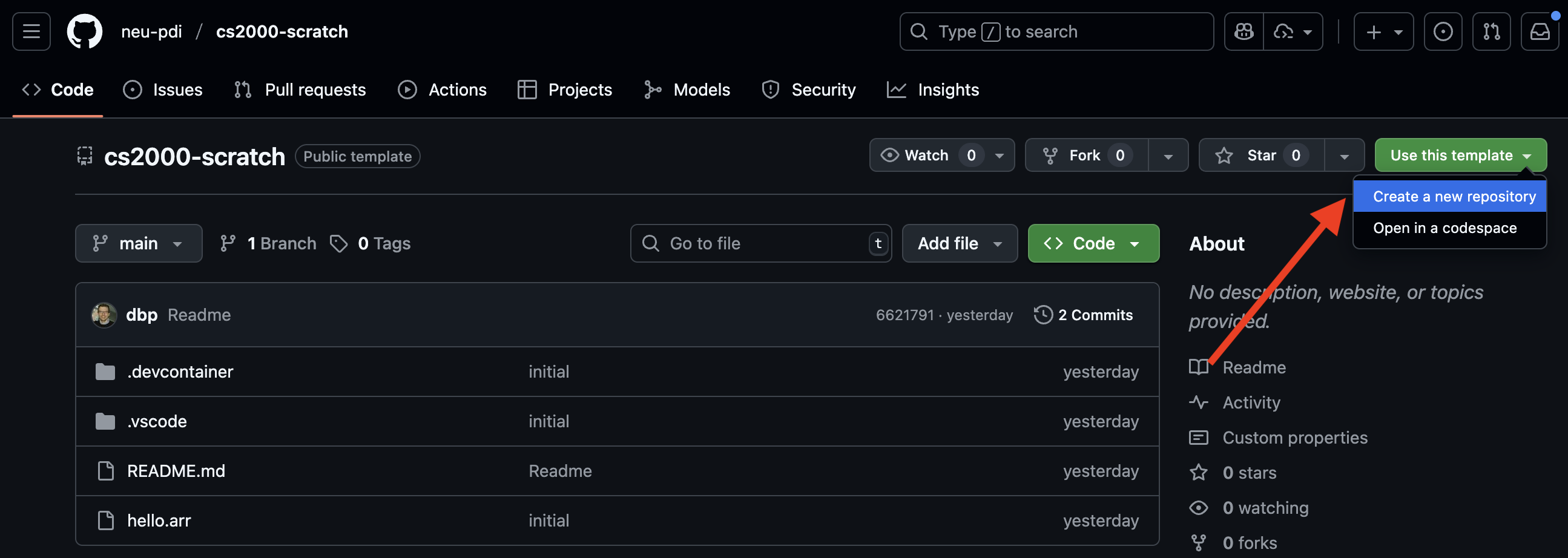
Now visit https://github.com/neu-pdi/cs2000-scratch and click the "Use this template" button on the right side and select "Create new repository".
-
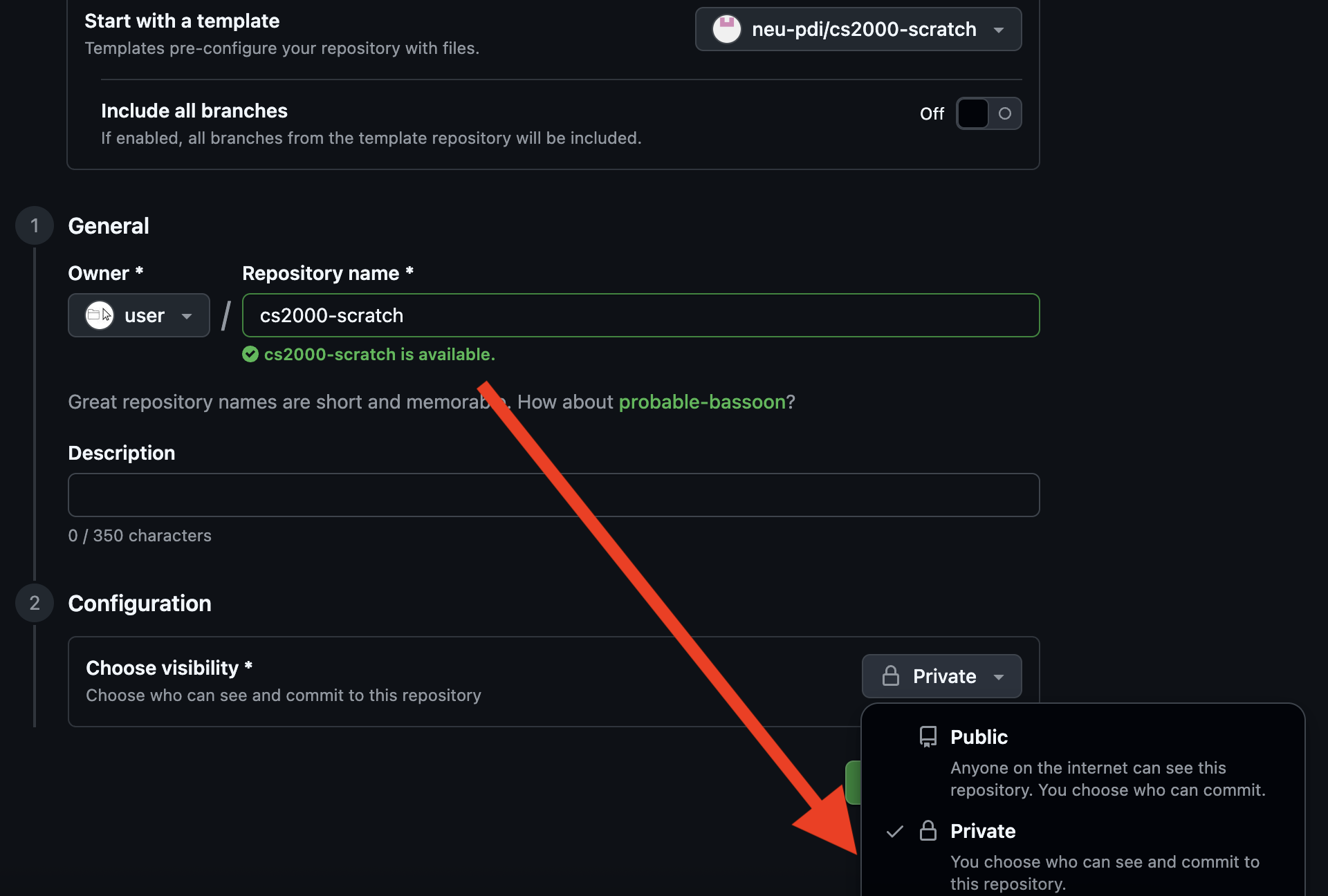
Under "Owner", your username should be selected. For "Repository Name", write
cs2000-scratch. You can all name them the same thing, since the full "name" of your repository will be "github.com/yourusername/cs2000-scratch". -
Make sure to set it to Private.
-
Once it generates, while viewing the repository, type the "." key. This should redirect you to "vscode.dev/github/yourusername/cs2000-scratch".
-
There are a sequence of installation steps you have to go through the first time, but won't again unless you switch to a different computer / browser profile, or if you are in incognito/private browsing mode.
-
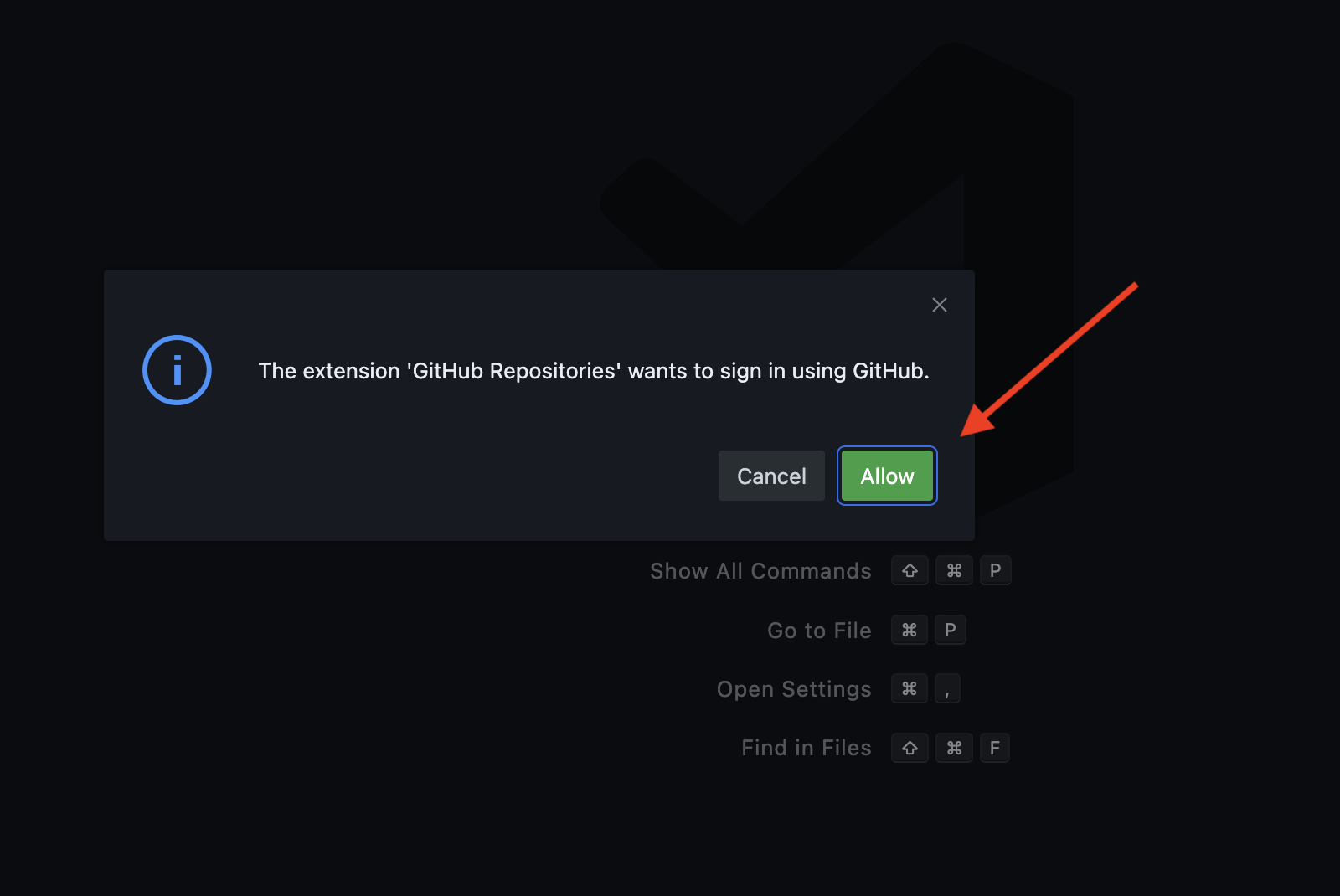
It will first prompt you that Github Repositories wants to sign in using Github. Click "Allow".
-
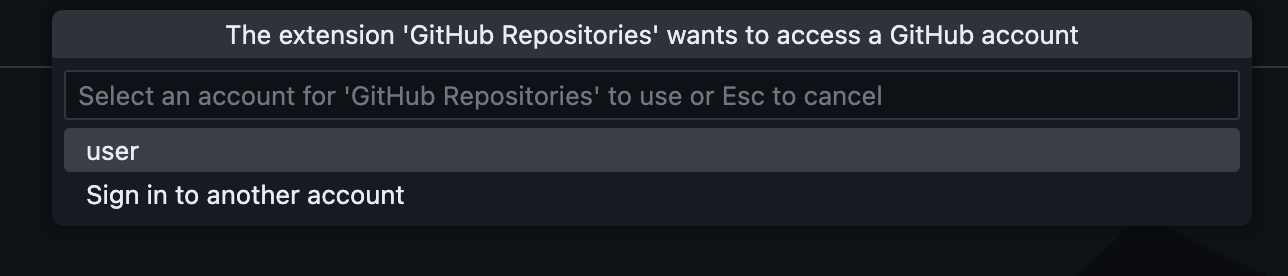
Then it will ask you to select a github account. Your account should be listed; click on it. These two steps will only happen once (unless you switch computers, use private browsing mode, etc).
-
A file called
[Preview] README.mdwill open up. You can close it. -
If you are using a different computer or browser than you did on Class 1, install the Python Language Levels extension, following the same steps as on Class 1.
-
Finally click the top icon on the left and click the little icon to make a new file. Type
2.pyas the file name. This will be your file for today, which is the second class. In general, we'll create a new file for each day within this "scratch" repository. Think of it as a notebook of experiments. -
Notice that the new file already has a first line,
#level beginner(your scratch repository is set up to add it to every new.pyfile). This tells PLL how strict to be: at thebeginnerlevel, it checks your program for some common mistakes before it runs it (we'll see one next class). We'll use this level for the first part of the semester, and switch to other levels later on. -
Notice that there is a PLL: Run Python File button at the top right of the editor, on the same bar as the file name. When you click it, PLL runs your file, and shows the results in the interactions panel at the bottom of the window (if you don't see it, run PLL: Show Interactions from the Command Palette).
-
Type an expression, like
1 + 1, at the interactions prompt, and hit "Enter". Now add the same expression on a new line in your file, and click PLL: Run Python File: when PLL runs a file, it shows the value of each expression in it, in order. -
To save your work, Github requires us to "commit" -- essentially, make a checkpoint with a message describing what we did since the last one. The icon on the left that has circles and lines (and now a blue circle with a 1 in it) gets you to the interface to do so. First, type the message, like "added class 2 file". Now click somewhere below the message, and it lists the "changes". You have to add each change you want to be included in the commit, by clicking the + next to the file. This moves the files from the "Changes" section to the "Staged Changes" section -- these are what will be included in the commit. Once you've added everything, click the checkmark at the top, or the big green button that says "Commit & Push", to make the commit.
-
It's good practice to commit often -- at the very least, every time you do some work that you would rather not lose. If you are working on an assignment for several hours, you should commit many times during that period. While your work may be saved in the interim (your browser does its best to save it), committing guarantees that the work is saved, as it is sent from your browser to a different computer elsewhere in the world (so even if you lost your computer, your work would still exist).
Strings and Images
Here is a 2.py with some string expressions, and some image expressions that
draw trees. Read it, and predict what PLL will show, before running it:
#level beginner

"hello" + " " + "cs2000!"
len("hello cs2000!")
"go " * 3

above(triangle(50, "solid", "green"),
      rectangle(10, 30, "solid", "brown"))

beside(above(triangle(50, "solid", "green"),
             rectangle(10, 30, "solid", "brown")),
       above(triangle(30, "solid", "green"),
             rectangle(6, 18, "solid", "brown")))

overlay(circle(5, "solid", "red"),
        triangle(50, "solid", "green"))
- What are the values of the first three expressions, and what is the type of
each? What would
"hello cs" + 2000do instead, and why? - The
besideexpression makes two trees: which one is on the left, and which is smaller? To make every trunk gray, how many places in the file would you have to change? - In the last expression, which shape is on top? What would you see if the
circle's radius were
40instead of5?
Class Exercise (15 mins)
- Look through https://docs.python.org/3/library/stdtypes.html#string-methods and find how to turn a string to all uppercase, and apply it to the string "hello cs2000!". Note that most string operations in Python are methods, which are written after the string, with a dot: e.g.,
"hello".count("l")counts how many times"l"occurs in"hello". - Create a blue circle and a yellow rectangle, then overlay them so the circle appears on top.
- Stack a green rectangle above a purple rectangle using
above. - Look through the PLL Images reference, and find how to rotate an image; use that to produce a red rectangle that is 100 wide by 20 tall in two different ways.
- Create a Stop sign (look up an image for reference).
text,regular_polygon, and other functions you've already seen may be helpful. - Create another image of your choice!
Wrap-up (10 mins)
- Did anyone get errors while they were working on these exercises? (Get someone to share -- likely is a type error, either passing the wrong number of arguments or passing the wrong type of input to one of the functions).
- In Python, all values have types -- what we've seen so far are:
int,float,str(strings), andImage. - Further, operations have types that they take in, and types that they produce. These are usually written down in the documentation with type annotations, e.g.:
len(s: str) -> int
circle(radius: float, mode: str, color: str) -> Image - This captures both the number of arguments (one for
len, three forcircle) and the type of the arguments (in the parentheses, after the:) and what it produces (after the arrow, written->), so if you make a mistake in either, Python can report that. - When we get to writing our own operations, we will write down types for them, so that similarly, PLL can report if our operations are not used correctly!
- Next time: named definitions and the difference between expressions and definitions.